Account and ride log
This page explains the features available when you are logged in.
My Page
You can open it from the menu at the top right of the screen, or from "My Page" in the bottom menu.
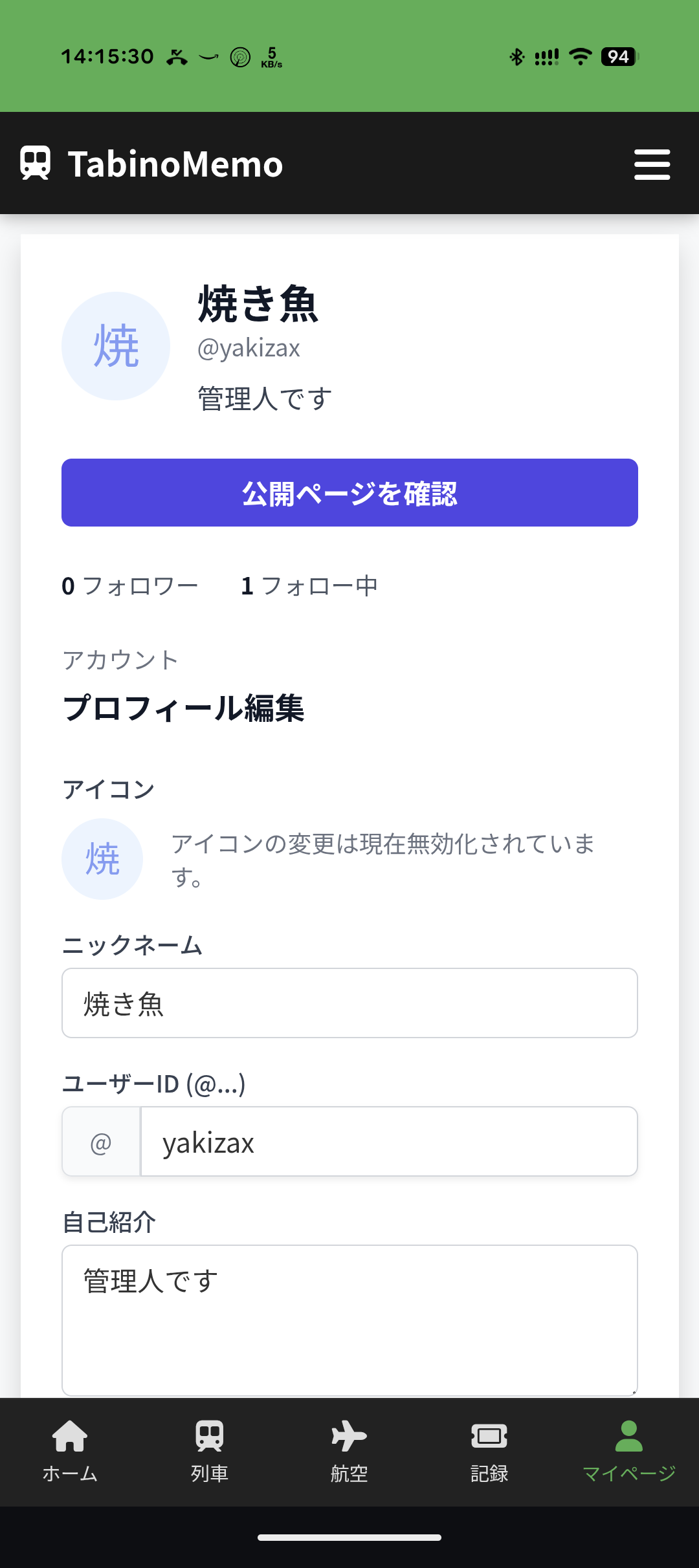
Editing your profile
You can edit your profile information and manage your account settings.
- Change nickname: Change the name displayed to other users.
- Edit profile: Set a bio and a profile icon image.
- Delete account: Use the "Delete account" button at the bottom of My Page to go to the screen where you complete the process.
Ride records (ride log)
A digital logbook where you can keep a record of the trains and flights you have ridden.
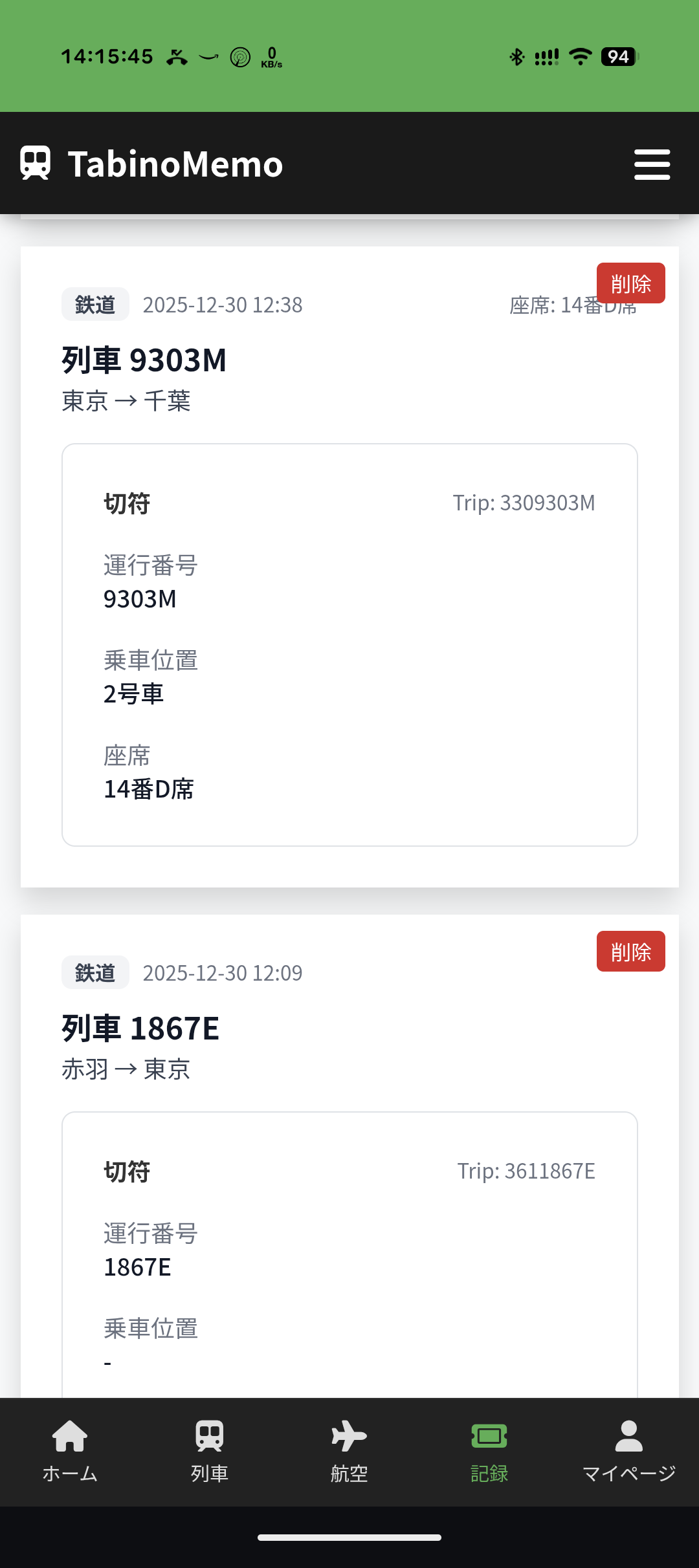
Creating a record
There are two ways to create a ride record.
1. Create from train service information (recommended)
On the detail screen of the train service information (such as the current position view), select the train you are riding to bring up a pop-up. When you press the "Ride this train" button, or the button at the bottom of the train timetable screen, the create screen opens with the train number and candidate ride sections already filled in. This lets you record accurate train data easily.
2. Create manually
- Select "Records" in the footer menu, or "Ride log" from My Page.
- Press the "Create new" button at the top right of the list screen or nearby.
- Enter the following information and save.
- Vehicle type: Choose from rail, aircraft, and so on
- Train number / vehicle: Train name, car number, and so on
- Boarding position / seat: Reserved seat or car number
- Ride section: Boarding station and alighting station
- Ride date and time: Planned or actual date and time
- Notes / impressions: Write freely about your trip memories
- Visibility: Whether to share the record on the timeline
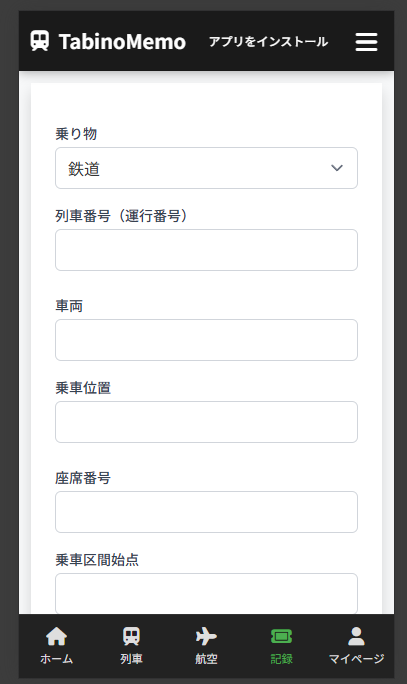
Editing and deleting records
Select a record you created from the list screen to view its details. If it needs changes, choose "Edit"; if you no longer need it, choose "Delete".
Timeline and following
Users can share their travel information with each other.
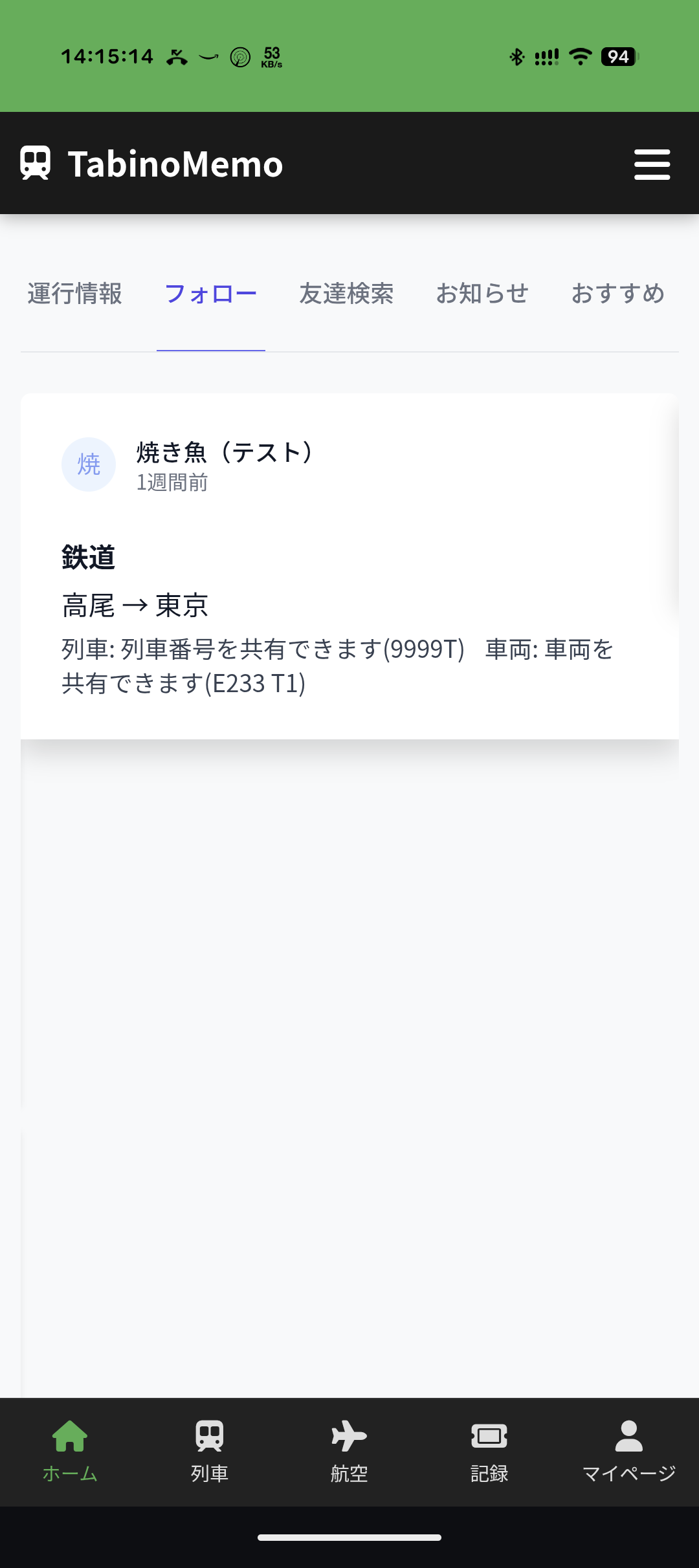
Timeline
Activity from users you follow (such as ride log updates) is shown in chronological order.
Following users
Press the "Follow" button on another user's profile page to keep up with their activity on your timeline. You can use the "User search" feature to find friends or users who interest you.